
GitHub Copilot is an AI pair programmer that helps you write code faster and smarter. Copilot for Xcode is an Xcode extension that provides inline coding suggestions as you type and a chat assistant to answer your coding questions.
- Features
- Requirements
- Quick Start
- Getting Started
- How to Use Chat
- How to Use Code Completion
- Keyboard Shortcuts
- Troubleshooting
- License
- Privacy
- Support
- Acknowledgements
GitHub Copilot Chat provides suggestions for your specific coding tasks via a conversational interface.

Receive AI-powered auto-complete suggestions from GitHub Copilot by starting to write code or by describing your intent in a natural language comment.

- macOS 12 or higher
- Xcode 8 or higher
- A GitHub Copilot subscription
-
Install via Homebrew:
brew install --cask github-copilot-for-xcode
Or download the
.dmgfrom the latest release and drag GitHub Copilot for Xcode into your Applications folder. -
Open the app and accept any security warnings.
-
Grant permissions (Background, Accessibility, and Xcode Source Editor Extension) when prompted.
-
Enable the extension in System Preferences > Extensions > Xcode Source Editor.
-
Open Xcode and verify the GitHub Copilot menu under the Xcode Editor menu.
-
Sign in to GitHub Copilot via the app settings.
-
Install via Homebrew, or
-
Download the
.dmgfrom the latest release and drag it into your Applications folder.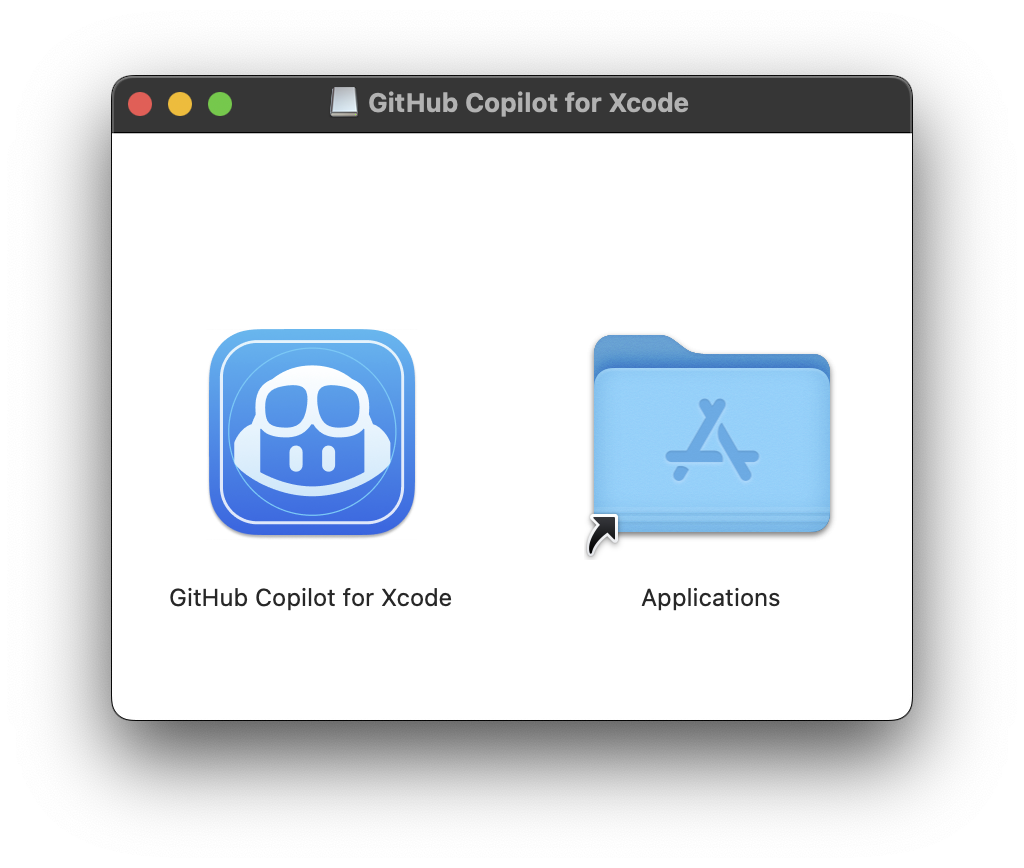
-
Updates can be downloaded and installed by the app.

-
Open GitHub Copilot for Xcode from Applications.
-
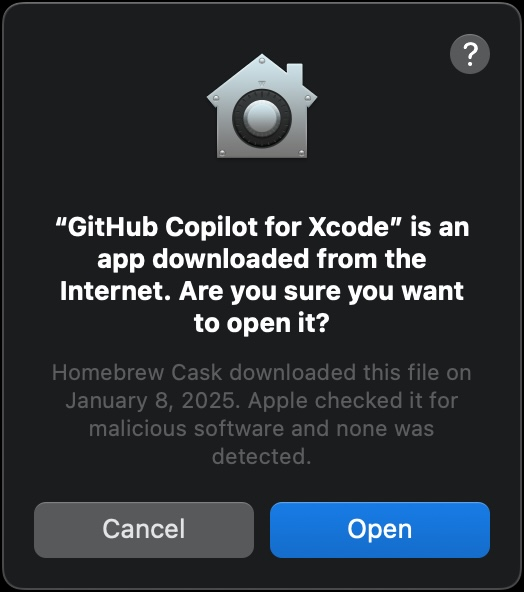
Accept the security warning.
-
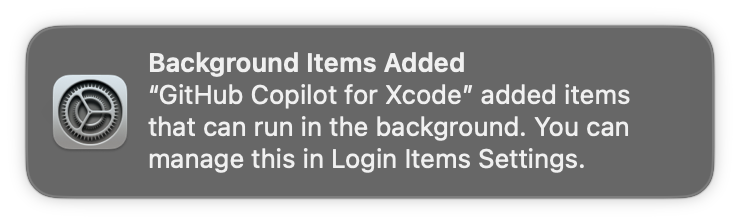
A background item will be added automatically.


-
Three permissions are required: Background, Accessibility, and Xcode Source Editor Extension.
-
The first time the app runs, you will be prompted for Accessibility permission:

-
Enable the Xcode Source Editor Extension manually:
- Click Extension Permission from the app settings.
- Go to System Preferences > Extensions > Xcode Source Editor, and enable GitHub Copilot.


-
Open Xcode and make sure the GitHub Copilot menu is available and enabled under the Xcode Editor menu.

-
Keyboard shortcuts can be set for all menu items in Xcode preferences under Key Bindings.

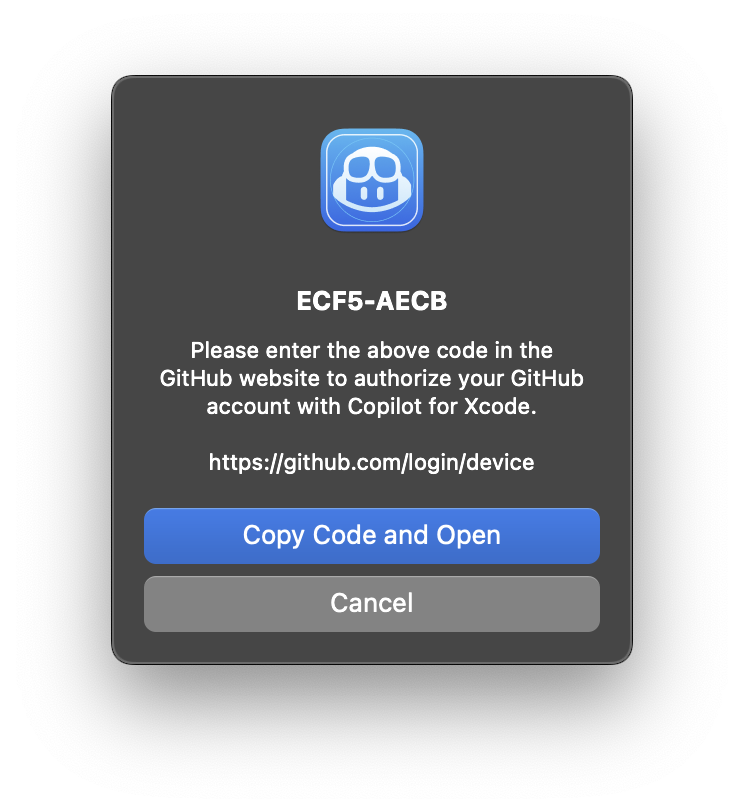
- Click Sign in in the app settings.
- A browser window will open and a code will be copied to your clipboard. Paste the code into the GitHub login page.

- To install updates, click Check for Updates in the menu or app settings.
- After updating, restart Xcode for the changes to take effect.
- New versions can also be installed via
.dmgfrom the releases page.
Note: To avoid conflicts, disable Predictive code completion: Xcode > Preferences > Text Editing > Editing
- Press
Tabto accept the first line of a suggestion. - Hold
Optionto view the full suggestion. - Press
Option + Tabto accept the full suggestion.

- Open Copilot Chat in Xcode via:
- Xcode → Editor → GitHub Copilot → Open Chat

- Or via the GitHub Copilot app menu → Open Chat

- Xcode → Editor → GitHub Copilot → Open Chat


- Press
Tabto accept the first line of a suggestion. - Hold
Optionto view the full suggestion. - Press
Option + Tabto accept the full suggestion.
| Action | Shortcut |
|---|---|
| Accept first line of suggestion | Tab |
| View full suggestion | Option |
| Accept full suggestion | Option + Tab |
| Open Copilot Chat | Customize in Xcode |
Set your own shortcuts in Xcode > Preferences > Key Bindings.
-
Copilot menu not showing in Xcode?
- Make sure the Source Editor Extension is enabled in System Preferences > Extensions.
- Restart Xcode after enabling the extension.
-
Permission issues?
- Confirm that Accessibility and Background permissions are enabled in System Preferences.
-
Problems signing in?
- Ensure you’re using the latest version of the app.
- Try re-signing in via the app settings.
For more help, visit our Feedback forum.
This project is licensed under the MIT open source license. See LICENSE.txt for details.
We follow responsible practices in accordance with our Privacy Statement.
To get the latest security fixes, please use the latest version of GitHub Copilot for Xcode.
We welcome your feedback to make GitHub Copilot better! If you have feedback or encounter problems, please reach out on our Feedback forum.
Thank you to @intitni for creating the original project this is based on.
Attributions can be found under "About" in the app or in Credits.rtf.